System Operations & Technical Guide
Protected: Order – November 24, 2023 @ 12:45 AM
Updates & Upgrades
Navigate to the test menu of the exA-Arcadia System by pressing the Test button on the
game launcher screen. The firmware version will be displayed in the bottom right.
[display screenshot of this screen]
exA-Arcadia Systems will need to be sent to a Support Center for firmware updates.
*Please note that bookkeeping data will not be retained. Take a photo before sending in your system for
servicing. Individual game save data will be transferred on a best efforts basis.
The system serial # can be found under the left cartridge slots.
Send a service request via our Contact Form and provide the serial # of the system.
The latest revision is pictured below.
[display front picture of new system]
The older revision is pictured below.
[display front picture of old system]
Upgrading from an older exA-Arcadia System to the latest model is a paid service.
For more details, check this page.
System Installation
Open the front PCB door on the ARC-32 cabinet.
Take out the wood panel by first removing the 2 screws circled in the diagram.
Attach the system brackets to both sides of the exA-Arcadia System.
Use wood screws to attach the system to the wood plate in the ARC-32 cabinet.
Return the wood plate into the cabinet and secure the wood plate.

Refer to the relevant cabinet section in the Support Portal.
In order to operate the exA-Arcadia System without a cabinet, a compatible JVS I/O Board is required for the controls and a monitor compatible with HDMI or DVI-D inputs displaying at 60hz refresh rate are required.
The exA-Arcadia System does not support direct USB inputs. To utilize USB devices, a compatible JVS I/O Board supporting those devices is required.
A native 1080p 60hz monitor is recommended for optimal operation. See the Video Output & Graphics Performance section for more details.
Factory Default Settings
While powering up the cabinet or exA-Arcadia System, simultaneously hold down Test and Service buttons until a reset message is displayed on screen.
*Note that this will delete all saved game data including bookkeeping data.
Game Cartridge Installation & Setup
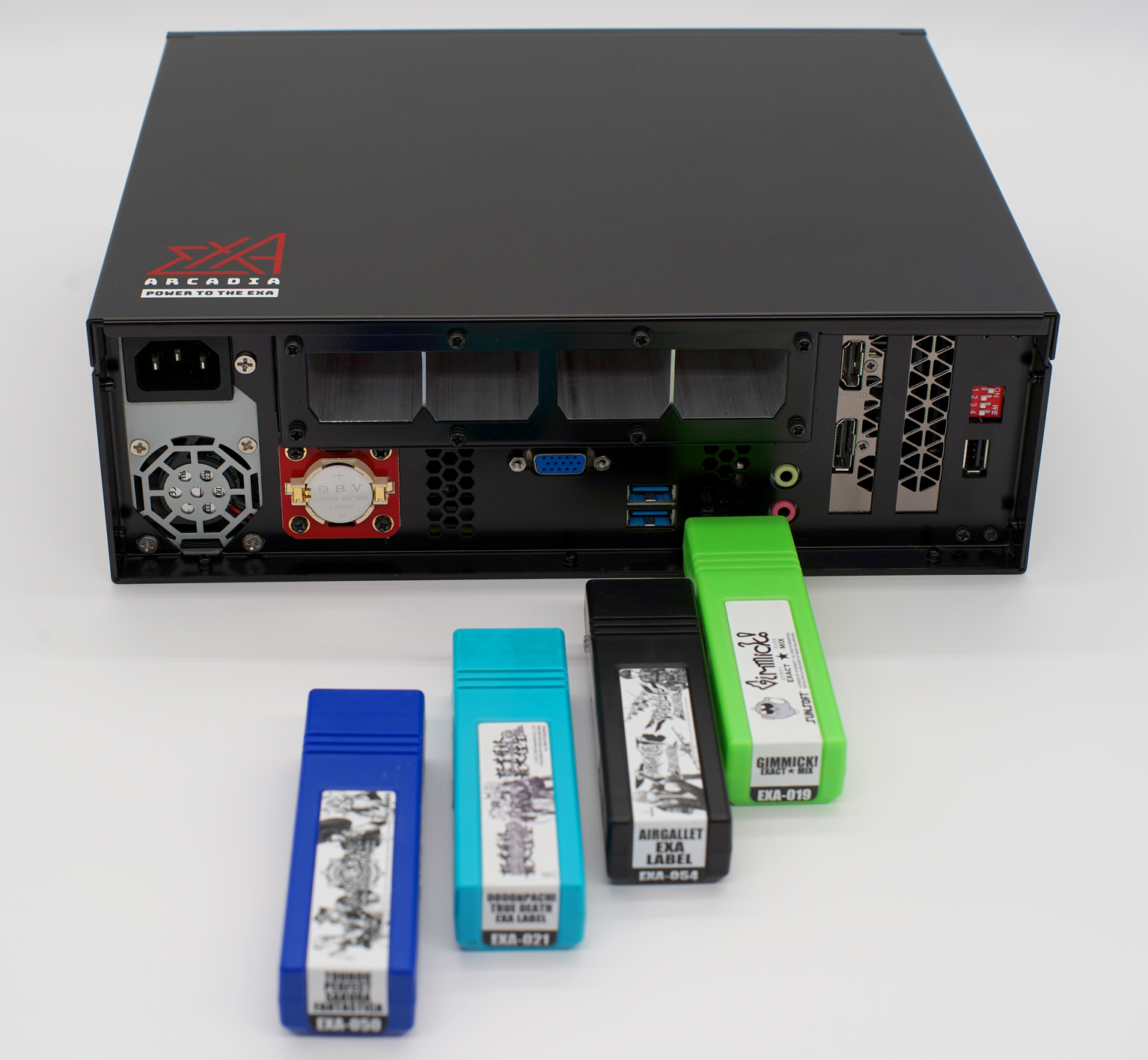
Insert the cartridge into one of the 4 cartridge slots in the exA-Arcadia system until it locks into the cartridge slot.
Cause
The exA-Arcadia System is not configured to automatically start games.
Resolution
To change the Auto Quit setting, turn on the exA-Arcadia System or cabinet.
Press the Test button on the game selection screen.
Navigate into the Game Selector options menu.
Change the Auto Start settings to Single. You can also optionally configure the Auto
Start timer to set when the game will launch after turning on the system or cabinet.
This is the recommended setting for cabinets with only 1 game installed.
*Note that if the Game Selector options are not displayed in the Test Menu, the exA-Arcadia System will require a firmware update.
[display screenshot of the version # on the game selector options screen]
Cause
The game is configured to automatically quit back to the game selector menu.
Resolution
To change the Auto Quit setting, start the game and press the Test button to access the
Test Menu.
In the Test Menu of each installed game, change the Auto Quit setting to off.
This is the recommended setting for cabinets with only 1 game installed.
The game cartridge will need to be sent to a Support Center for servicing.
The serial # for each game can be found on the side of the cartridge.
Send a service request via our Contact Form and include the serial #.
Video Output & Graphics Performance
The exA-Arcadia System supports 480p, 720p, 768p, 1080p and 4K - all at 60hz refresh rate.
1440p is not officially supported.
For 480p output
A separately purchased HDMI to VGA DAC (Digital Analog Converter) is required.
*Note that the covered VGA connector cannot be used for video output.
For 4K output
Ensure that your HDMI cable is HDMI 2.0 compatible to support 4K60 output or you may experience reduced frame rates or stuttering.
The exA-Arcadia System supports HDMI and DVI-D output. For 4K video output, ensure that your cable is compatible with 4K60 output.
*Note that the covered VGA connector cannot be used for video output.
Audio will be output with both connector types when no audio cable is connected to the mini earphone output.
[display system front picture]
Cause
When the exA-Arcadia System starts up, it will send an EDID query to the connected display device (a monitor, video splitter, etc) to determine what the device's native resolution is and attempt to match it to reduce potential display lag.
If the device replies with an incorrect or incompatible EDID response, the exA-Arcadia System will default to the last saved resolution setting or to a safe resolution setting such as 1024 x 768.
*Note that many Chinese manufactured monitors and video splitter devices will return incorrect EDID settings.
Resolution
Ensure that the connected monitor or video splitter supports the desired resolution.
Set DIP 2 to the ON position to force 480p resolution. Boot the exA-Arcadia System and go into the system's Test Menu. Change the resolution to the desired resolution and confirm the change.
Turn OFF DIP 2 after this procedure.
For video splitter devices, they generally need to be powered devices to provide the correct signal across all outputs.
For devices which provide bad EDID responses, an EDID spoofer or management device can be used to correct the EDID response to the exA-Arcadia System.
For any further help, send a service request via our Contact Form.
Streaming & Video Capture
Cause
The HDMI or DVI-D video splitter does not support the resolution output from the exA-Arcadia System.
Resolution
For video splitter devices, they generally need to be powered devices to provide the correct signal across all outputs. Not all video splitters support HD resolutions. The monitors connected to the splitter also need to support the same resolution. Check with the manufacturer to confirm the given video splitter's specs.
For devices which provide bad EDID responses, an EDID spoofer or management device can be used to correct the EDID response to the exA-Arcadia System.
For any further help, send a service request via our Contact Form.
*Note that we cannot provide support for other manufacturers' products.
Cause
An audio cable is connected to the line out audio output on the exA-Arcadia System.
Resolution
To capture audio via HDMI or DVI-D, ensure that no cable is connected to the 3.5mm mini earphone line out when turning on the system.
Maintenance
For the newer style exA-Arcadia system
Locate the battery on the outside of the system below the left cartridge slots. Carefully
remove the battery by lifting up from the right side taking care not to use excessive force and avoid bending the holder pins on the left side.
Replace the battery with a high quality brand CR2032 battery by inserting under the pins on the left-hand side and pushing down on the right-hand side.
Do not push the battery in over the pins on the lefthand side as this can cause damage to the system.
To reset the bookkeeping calendar data, allow the system to run for a few hours without a game
cartridge inserted.
[display battery picture]
For the older style exA-Arcadia system
Send a service request via our Contact Form.
DIP Switch Settings
[display dip switch graphic from manual]
ON = Vertical Monitor Orientation
OFF = Horizontal Monitor Orientation
*Note that all Vertical games also support Horizontal orientation. Only some Horizontal titles support Vertical orientation.
ON = Force 480p SD Resolution Output
OFF = HD Resolution Video Output
*For CRT monitor usage, a separately purchased HDMI to VGA DAC (Digital Analog Converter) is required.
ON = Rotate the Video Output by 180 degrees
OFF = Non-rotated Video Output
*Note that this feature is only compatible with some game titles.
Not Used
System Error Codes
Cause
The exA-Arcadia System cannot get a response from or is not correctly connected to a compatible JVS I/O Board.
Resolution
Ensure that the USB Type A to Type B cable used is a fully wired high quality cable and not a cable built for charging.
Compatible JVS' I/O Boards
| Manufacturer | Models |
|---|---|
| exA-Arcadia |
Type-V
Type-B
|
| IONA |
IONA-JS
IONA-SB
|
| TD-IO | TD-IO |
| Manufacturer | Models |
|---|---|
| Capcom |
NAOMI Converter V2
Service button is implemented over all players due to a Capcom design issue.
|
| Konami | Windy 2 I/O |
| Namco |
Cyber Lead V2
NAJV2
|
| River Service | 081202 JAMMA IO |
| Sega |
838-13638 Rev A/B
837-13551
837-14572
837-15257
|
| Taito |
JVS IO K91X1147A
K91X1097B
K91X1097C
|
*These models are not compatible with the JVS protocol.
Troubleshooting for multiple cabinet configurations
All linked cabinets must be turned on simultaneously with the exA-Arcadia System.
The exA-Arcadia system boots quickly. All cabinets and correspending I/O Boards must provide a response to the system during initialization or an I/O Error message will be displayed. It is highly recommended to only install JVS' I/O Boards for multiple cabinet installations. Standard JVS I/O Boards do not robustly support linked cabinets.
*Note that for older system models using standard JVS I/O Boards, the maximum supported length of USB cables is 5 meters between daisy chained I/O Boards. On newer system models using JVS' I/O Boards, the maximum supported length of USB cables is 30 meters between daisy chained I/O Boards.
Cause
The game cartridge cannot be read or is not functioning correctly.
Resolution
Try gently cleaning the cartridge edge connector with a Q-tip and using canned air, blow out dust that may be in the cartridge slot.
For any further help, send a service request via our Contact Form.
Cause
A game cartridge was removed from the exA-Arcadia System while it was on.
Resolution
Do not hot swap, insert or remove game cartridges while the system is turned on.
Cause
The exA-Arcadia System's bookkeeping calendar data is out of sync.
This can occur from repeated power cycling of the system over a short period of time or a dead calendar battery.
Resolution
For the newer style exA-Arcadia system
Locate the battery on the outside of the system below the left cartridge slots. Carefully
remove the battery by lifting up from the right side taking care not to use excessive force and avoid bending the holder pins on the left side.
Replace the battery with a high quality brand CR2032 battery by inserting under the pins on the lefthand side and pushing down on the righthand side.
Do not push the battery in over the pins on the lefthand side as this can cause damage to the system.
To reset the bookkeeping calendar data, allow the system to run for a few hours without a game cartridge inserted.
[display battery picture]
For the older style exA-Arcadia system
Send a service request via our Contact Form.
Cause
The exA-Arcadia System's bookkeeping calendar battery is running low.
Resolution
For the newer style exA-Arcadia system
Locate the battery on the outside of the system below the left cartridge slots. Carefully
remove the battery by lifting up from the right side taking care not to use excessive force and avoid bending the holder pins on the left side.
Replace the battery with a high quality brand CR2032 battery by inserting under the pins on the left-hand side and pushing down on the right-hand side.
Do not push the battery in over the pins on the left-hand side as this can cause damage to the system.
To reset the bookkeeping calendar data, allow the system to run for a few hours without a game cartridge inserted.
[display battery picture]
For the older style exA-Arcadia system
Send a service request via our Contact Form.
For long text based error messages, send a service request via our Contact Form detailing the error message.
Still having issues?
Get in touch with our customer support team for more help.
Contact Support