ゲームソフトサポート
Common Game Questions
How to install an exA-Arcadia game cartridge
Insert the cartridge into one of the four (4) cartridge slots in the exA-Arcadia system.
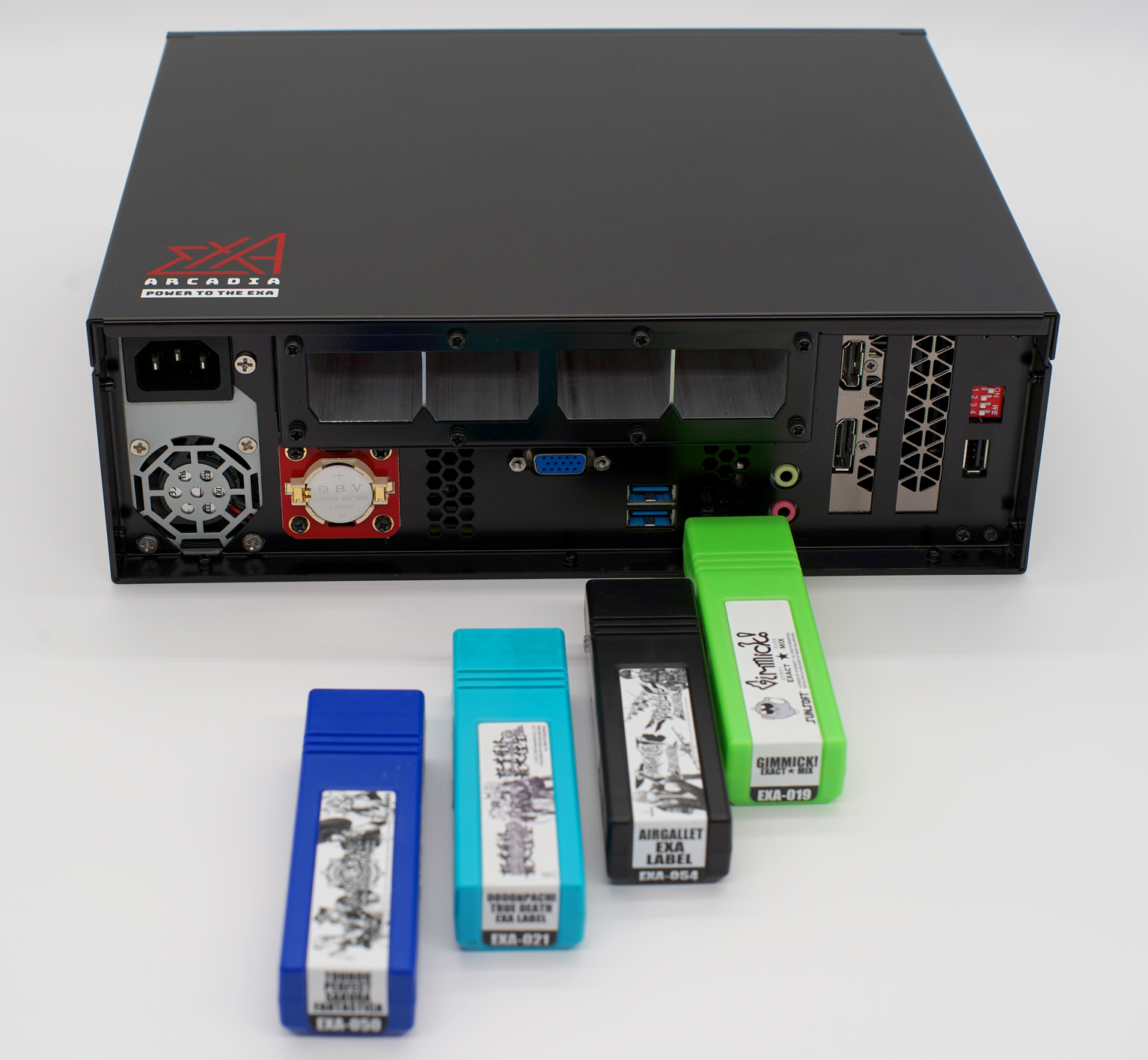
How to update an exA-Arcadia game cartridge
- To update a game to the latest version, the cartridge will need to be sent into the nearest Support Center.
- Look for the serial number on the side of the cartridge and send the serial number and your address in a Support Request.
- You can find the latest version information of each game on our Patch Notes page and a detailed changelog on the site of each game title.
My game will not auto start when I turn on the cabinet or system
- Press the Test button on the game selection screen to access the system Test Menu.
- Go into Game Selector options.
- Change the Auto Start setting here to Single.
- You can also optionally set the timer to Auto Start the game to 1 minute for the fastest start time.
My game keeps going back to the game selection screen
- Press the Test button while the game is running to access the Test Menu.
- Change the Auto Quit setting here to off.
My cartridge appears in the game selection screen but the games does not start on selection
The game cartridge will need to be sent into the nearest Support Center.
- Search for the serial number on the side of the cartridge.
- Submit the serial number and your address in a Support Request.
My game seems to be playing too fast
Check that your monitor is set to a 60Hz setting.
My game is in Japanese
The default language for games is Japanese.
How to change languages:
- Press the Test button while the game is running to access the Test Menu.
- Select Language in the Test Menu and then change it to English.
System Error
IO Error
Please read the System Support Error page for the IO Error resolution.
Error 28
Please read the System Support Error page for the Error 28 resolution.
Error 36
Please read the System Support Error page for the Error 36 resolution.
Error 37
Please read the System Support Error page for the Error 37 resolution.